
Now Available on the App Store
Gloam
A private daily micro-journal for iPhone with one prompt, twelve moods, streaks, timeline search, and on-device storage.
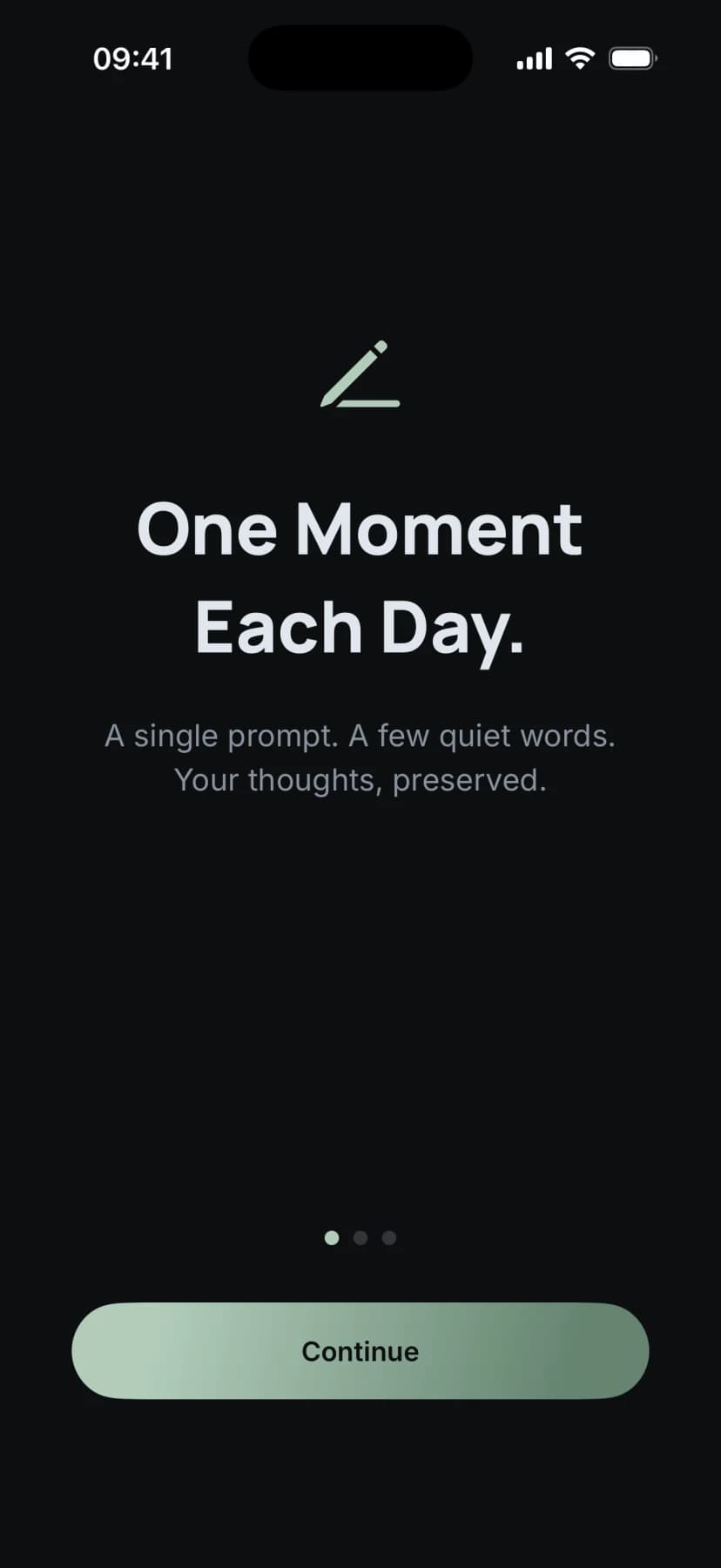

Inside the app
What it does
- Focus Shroud
- Tap into the editor and Gloam fades the surrounding screen to 10% opacity: the header, streak badge, date, greeting, mood chips, photo row, and Save button all recede. Your prompt and the words you are writing stay at full brightness. Nothing is hidden, it is just quieter. With Reduce Motion on, the change is instant instead of animated.
- A prompt every evening
- Gloam opens with one reflection prompt drawn from a built-in library of 80, written across gratitude, growth, mindfulness, connection, creativity, and end-of-day themes. The prompt is derived from the date rather than picked at random, so the library moves in a fixed cycle and eventually comes back around. Write about it, or ignore it and write whatever the night calls for.
- Twelve moods
- Mark an entry with any of twelve moods: Peaceful, Productive, Reflective, Grateful, Energetic, Anxious, Hopeful, Tired, Inspired, Calm, Happy, and Frustrated. It is a closed list rather than a free-text field — there is nothing to invent and nothing to maintain — and you can pick as many as fit the night. Search offers the moods you reach for most as one-tap shortcuts back to every entry that carried them.
- Streaks and the evening ritual
- Gloam tracks your current streak and your longest one, marks the week on a small calendar, and marks the 3, 7, 14, 30, 50, and 100 day milestones when you reach them. Turn on the optional evening reminder and iOS nudges you at the time you choose, 8:00 PM by default. The reminder is scheduled on your device and is off until you switch it on.
- Timeline and search
- The timeline holds every entry you have written, newest first, and any entry can be deleted from there behind a confirmation. Search runs across the full text of your entries and the prompts you answered, and keeps your last five searches so you can pick a thread back up.
- Optional access
- Optional access adds Memory Lane, which surfaces the single entry you wrote on this exact day one year ago; export of your whole journal as a plain text file; custom prompts of your own, which join the same daily rotation; and a photo on an entry. Apple shows the applicable terms before purchase.
About Gloam
Product details
Gloam is a daily micro-journal for the quiet moments before sleep. One prompt, one entry, one minute of honest reflection. Mark how the day felt from a fixed list of twelve moods, build a streak, search what you have written, and revisit it on the timeline. It is free to download. There are no accounts and no cloud sync, and your journal content stays on your device.
Available now on the App Store.
Gloam is a private daily journal for a small, repeatable evening practice. It is free to download.
Gloam contains no ads and no third-party tracking. It is free to download; Apple presents any optional purchase terms before you buy.
Journal entries, mood selections, prompts, and photo attachments stay on your device and are never shared with third parties. There are no accounts, no cloud sync, and no journal uploads.

Questions about Gloam
How much does Gloam cost?
Gloam is free to download from the App Store. Apple shows the price, terms, and included features for any optional purchase before you buy, and those details can vary by storefront. It does not show ads.
Is my journal private?
Yes. Entries, moods, prompts, and photo attachments are stored locally on your device using SwiftData. There are no accounts or cloud sync, Gloam has no server of its own, and journal content is never uploaded or used for ad targeting. Purchases go through Apple’s StoreKit, and support opens an email in your own mail app only when you choose to send one.
What is the Focus Shroud?
When you tap into the editor, the Focus Shroud fades the surrounding screen to 10% opacity: the header, streak badge, date, greeting, mood chips, photo row, and Save button. The prompt and the text you are writing stay at full brightness, so nothing is hidden, only quieted. Tapping away restores everything, and with Reduce Motion enabled the change happens instantly instead of fading.
How do daily prompts work?
Gloam shows one prompt each day, chosen from the date rather than at random. It steps through the built-in library of 80 prompts in a fixed cycle, so consecutive days are always different prompts and the library comes back around once the cycle completes. You can write about the prompt or ignore it and journal freely. Optional access lets you add prompts of your own, which merge into the same rotation.
What is Memory Lane?
Memory Lane surfaces the single entry you wrote on this exact day one year ago. Not last month, and not two or three years back, just the one day. If you did not write that day, there is nothing to show. Memory Lane is an optional-access feature.
Does Gloam use AI or send anything to a server?
No. Gloam contains no AI or machine-learning features and runs no analytics, no crash reporting, and no journal upload. Prompts are a fixed written library, moods are a fixed list, and what you write is stored verbatim and never analysed. Apple handles in-app purchases through StoreKit; nothing else leaves the device unless you choose to send a support email.
How do I restore my Pro purchase?
Open Gloam, go to Settings, and tap Restore Purchases. It asks the App Store to re-check the entitlement on your Apple ID and restores a verified prior purchase, including an eligible legacy lifetime purchase. If none is found, or if it cannot be verified, it tells you instead of unlocking.
How do I delete all my data?
You can delete any single entry from the Today screen or from the timeline; both ask you to confirm first. To remove everything at once, uninstall the app: entries, moods, photo attachments, and preferences are stored only on your device, so uninstalling deletes all of it permanently.